DocuSign Integration Go-Live Steps
"Go-Live" is DocuSign's process for migrating an integration created in the Developer environment to the Production environment. This is an automated process that is typically completed within 72 hours.
Docusign's Go-Live process is a mandatory security and stability review for its applications integrating with third-party apps when moving them from the Developer environment to live Production environment use. This ensures they meet DocuSign's standards before handling real transactions, and is needed to enable real-world functionality, maintain platform security, and comply with regulations. This process is owned and maintained by DocuSign.
GivingData Support will make every reasonable attempt to help resolve Go-Live issues, but there may be situations where additional support is needed from DocuSign. If needed, GivingData may ask you to engage DocuSign Support directly for assistance.
- Log in to the DocuSign Developer account as the administrator.
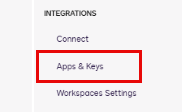
- In the left-side panel under Integrations, click Apps & Keys.
- Next to the GivingData integration in the list, click the Actions dropdown, and then click Select Go-Live Account.

- Prompts will appear, stepping you through the following actions:
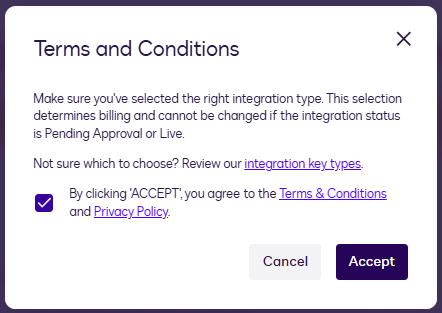
- Accept terms and conditions.
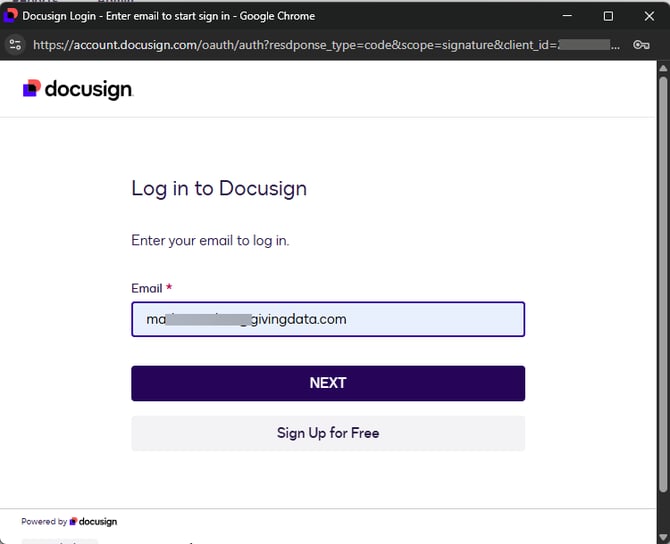
- Log in to your DocuSign Production account.
- Select the DocuSign Production account to which the GivingData integration will be promoted.
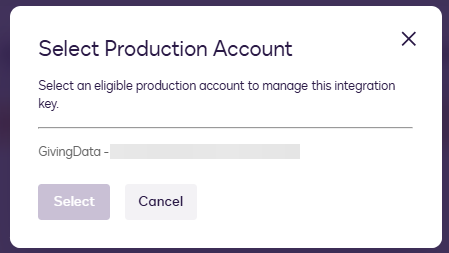
- Accept terms and conditions.
- DocuSign performs an automatic go-live review for promoting the integration to the selected DocuSign account.
- A notification appears, informing you that DocuSign will confirm the eligibility test results and promote the integration to the Production environment within 3 business days.
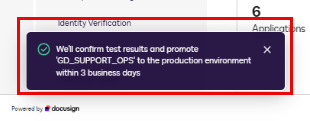
- A notification appears, informing you that DocuSign will confirm the eligibility test results and promote the integration to the Production environment within 3 business days.
- Click the Identity Verification Link under the Pending Approval status for the GivingData integration.

- A new tab opens in your browser with the Identity Verification steps:
-
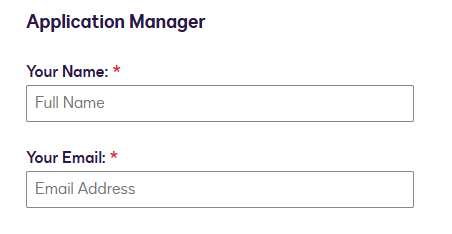
- Application Manager Details - Enter the name and email addresses that match those on the DocuSign Production account. The email address must use a corporate domain vs. personal or generic (e.g. @gmail.com or @outlook.com).
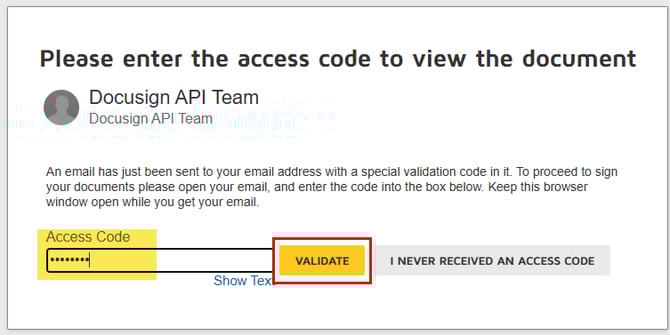
- Email Validation - Enter the validation code received by email from DocuSign.
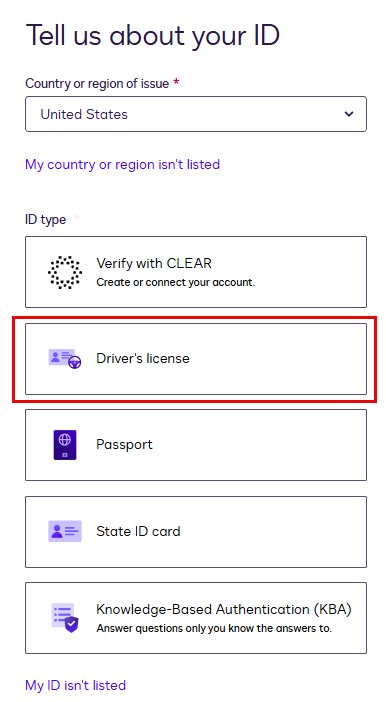
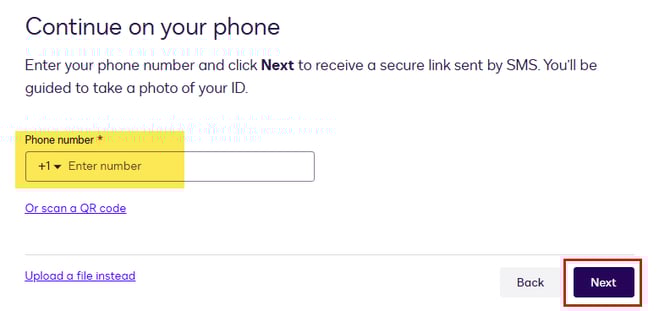
- ID and Phone Details - Select your ID type and issuing state or region, and enter a mobile phone number for an additional verification step.
- Phone Verification - Follow the instructions provided by DocuSign to complete verification by phone.
- Application Manager Details - Enter the name and email addresses that match those on the DocuSign Production account. The email address must use a corporate domain vs. personal or generic (e.g. @gmail.com or @outlook.com).
-
- You will be automatically redirected to the Go-Live form to complete submission.
- Integration Options - Select the first option on the form. Although GivingData developed the integration, your organization owns the DocuSign integration key for your account.
- Integration Key - Enter the Integration Key from your DocuSign Developer (Sandbox) account.
- The integration key only uses OAuth v2 - Select Yes.
- Company Name - Enter your organization or foundation's name.
- Business Contact Name - Enter the DocuSign Production account administrator's name.
- Business Contact Email - Enter the DocuSign Production account administrator's email address.
- Production API Account ID GUID - To obtain this value, log in to your DocuSign Production account, click Apps & Keys in the left-side panel under Integrations, and then copy the Account ID.
- Date - If prompted, enter today's date. This field might also be labeled "Date 20+ test API calls completed" which is an outdated requirement.
- Signer - The form must be signed by the DocuSign Production account administrator.
- OAuth Acknowledgement - Check the box. GivingData uses OAuth 2.0, so no extra configuration is needed.
If you experience any issues with the go-live review, reach out to your GivingData contact for assistance.
🛑 Wait to move forward in this article until DocuSign confirms you have passed the go-live review.
Configure API Access in DocuSign
Once DocuSign's Go-Live review is passed, the GivingData integration can be promoted to your DocuSign Production account.
- Log in to the DocuSign Production account as the administrator.
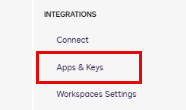
- In the left-side panel under Integrations, click Apps & Keys.
- Next to the GivingData integration, click the Actions dropdown, and then click Edit.

- In the Authentication section, click Add Secret Key, and then copy the Client Secret value, as you will be asked to provide this to your GivingData contact.

- ⚠️This value will not be visible again, so be sure to copy it immediately.
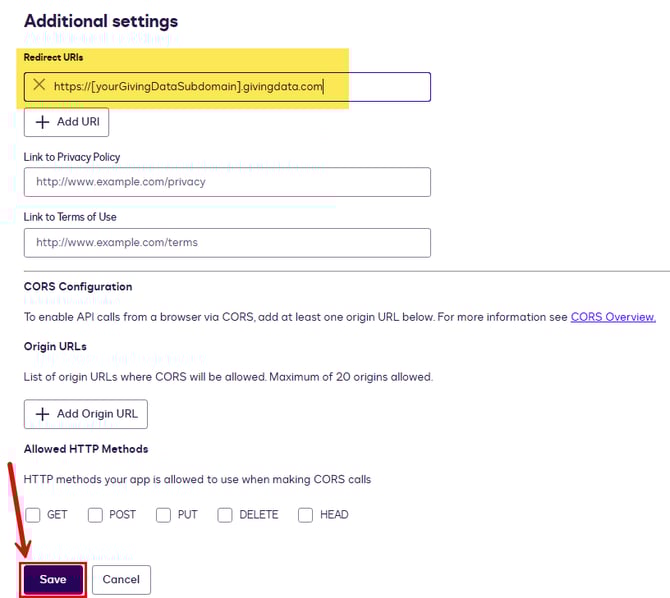
- In the Additional Settings, under Redirect URIs, click Add URI, enter the URL of your GivingData site (https://[yourGivingDataSubdomain].givingdata.com), and then click Save.
Configure the Webhook in DocuSign
The webhook must next be configured in your DocuSign Production account.
- While still logged in to the DocuSign Production account as the administrator.
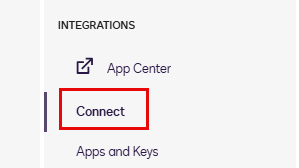
- In the left-side panel under Integrations, click Connect.
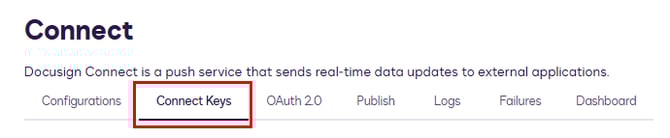
- Click the Connect Keys tab.
- Click Add Secret Key, and then copy the Connect Key value, as you will be asked to provide this to your GivingData contact.
- ⚠️This value will not be visible again, so be sure to copy it immediately.
- Click the Configurations tab.
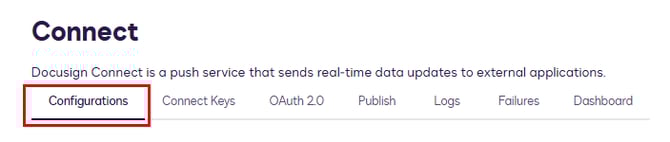
- Click Add Configuration, and then click Custom.
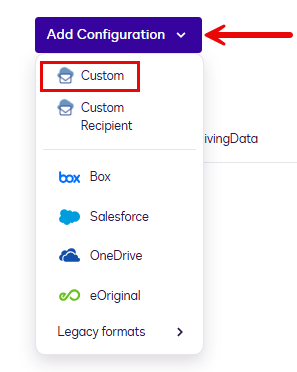
- Fill out the fields as follows.
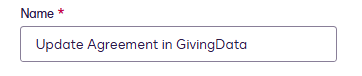
- Name - Enter "Update Agreement in GivingData".
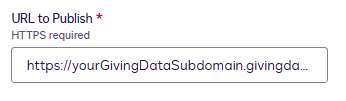
- URL to Publish - Enter https://[yourGivingDataSubdomain].givingdata.com/api/documentsignaturerequest/update
- Data Format - Select "REST v2.1".
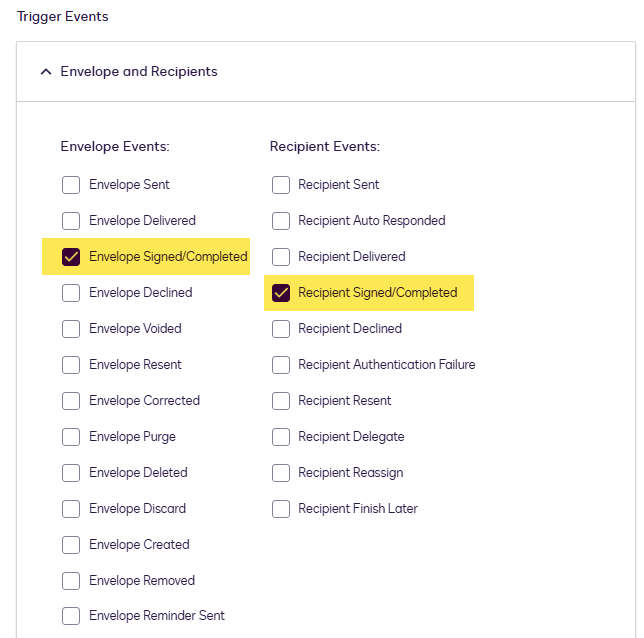
- Trigger Events
- Envelope Events - Check the box for Envelope Signed/Completed.
- Recipient Events - Check the box for Recipient Signed/Completed.
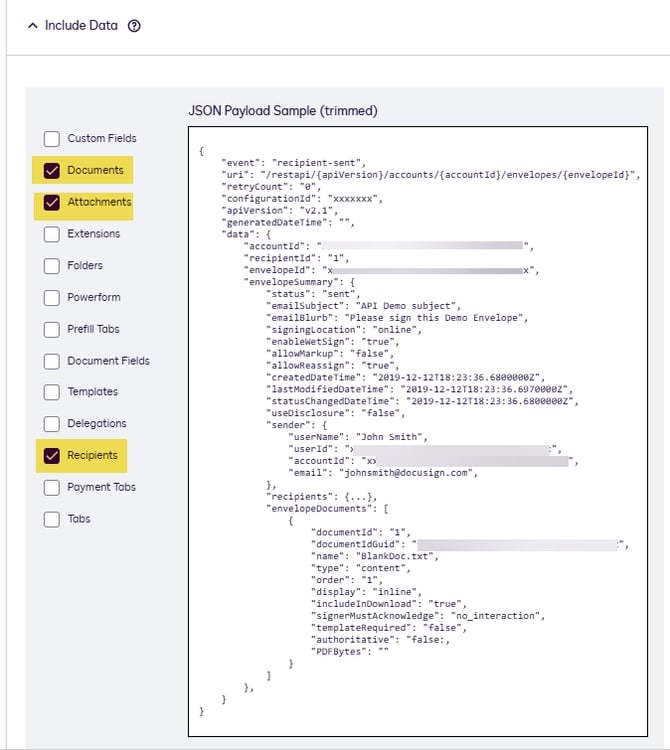
- Include Data - Check the boxes for Documents, Attachments, and Recipients.
- Integration and Security Settings
- Check HMAC Signature - Check the box for this setting.
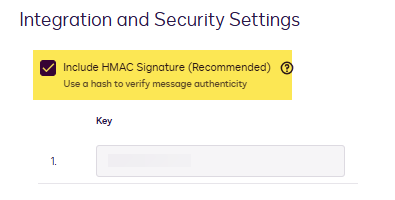
- Check HMAC Signature - Check the box for this setting.
- Name - Enter "Update Agreement in GivingData".
- Click Add Configuration.
Share Required Information with GivingData
Share the Client Secret and Connect Key values you copied in the previous steps with your GivingData contact.
🛑 Wait to move forward with next steps until instructed by your GivingData contact.