A list view describes a list of results or associated records organized into rows and columns. Common examples of list views include super search results, the Requests tab of an organization record, and payments and approvals dashboards after clicking into a specific status.
Default list views are configurable in Admin Tools & Settings. This sets the default columns and preferences for many different specific list views throughout the site and goes into effect for all users. When viewing a list view in the site, edits can be made to the visible columns directly on the list view. This does not affect the default list view configuration.
For each super search type, the default filters and sort order can be configured in addition to the default columns.
Follow the steps below to edit default list views.
- Click the gear icon in the quick navigation menu.
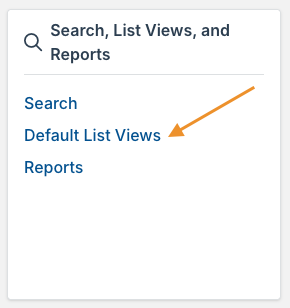
- Click Default List Views.
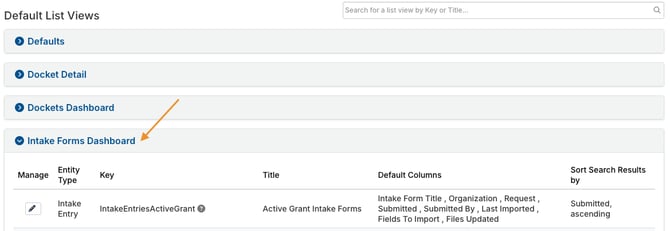
- Click a section to expand it.
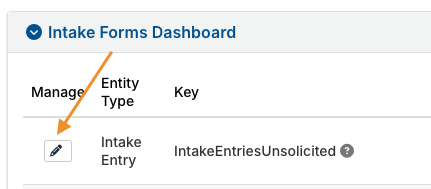
- Click the pencil icon next to a list view.
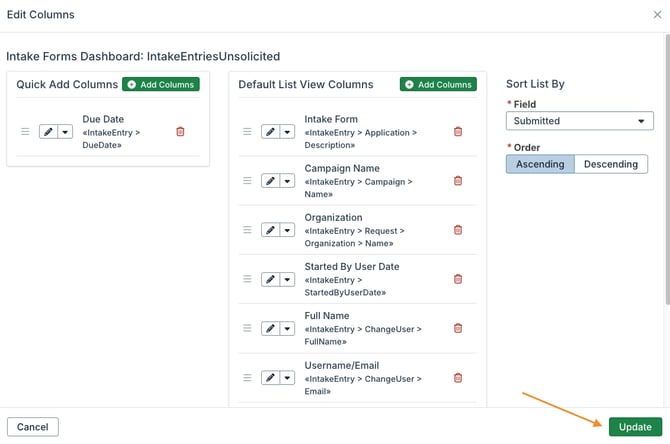
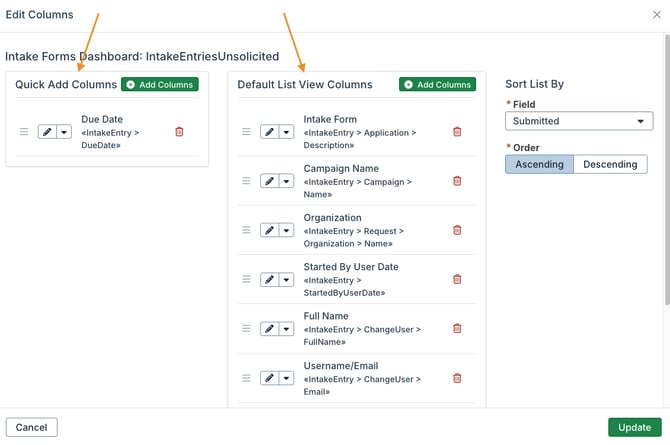
- The Default List View Columns section displays the columns currently included in the default list view. The Quick Add Columns section displays columns that are not included in the default list view, but are available as Quick Add options when adjusting columns for the list view directly.
- Click the trash can icon next to a column to remove it.
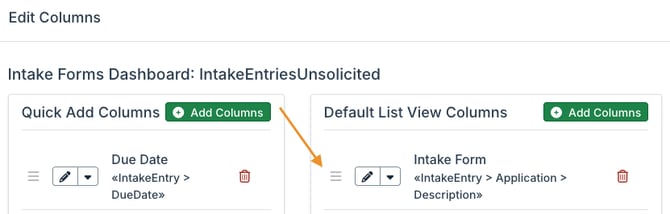
- Drag and drop columns into the desired order.
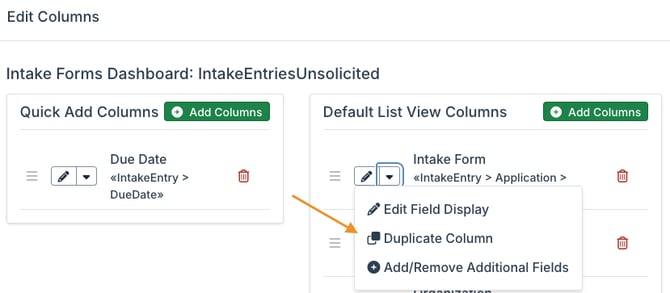
- Click the dropdown icon next to a column, and then click Duplicate Column to add another copy of the column to the list view.
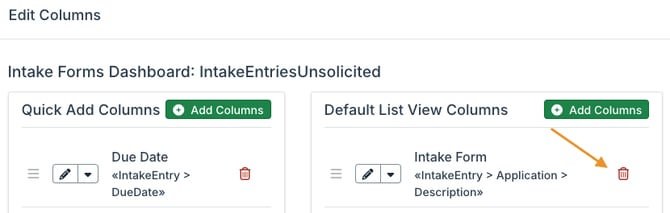
- Click the trash can icon next to a column to remove it.
- Click Add Columns to add additional columns.
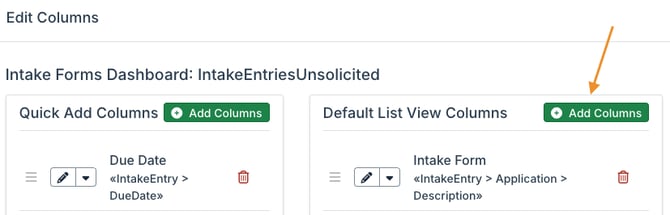
- Locate a field using the lists in the modal, or use the search bar. Check the box for each field to add as a column, and then click Save.
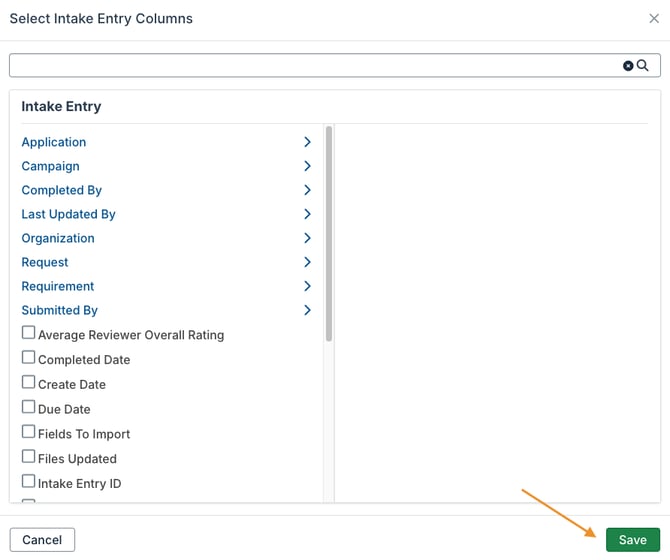
- Locate a field using the lists in the modal, or use the search bar. Check the box for each field to add as a column, and then click Save.
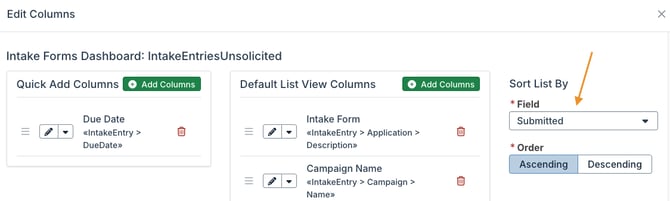
- Adjust the default list view sorting as desired.
- Select the field by which the list view should be sorted.
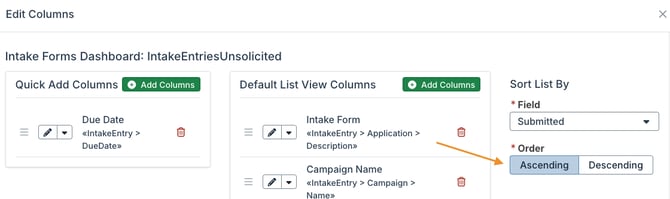
- Click either Ascending or Descending order.
- For a super search list view, add at least one column by which the list view should be sorted. Sorting columns can be dragged and dropped into the desired order, or deleted. Click the arrow button to switch to either ascending or descending sort order.
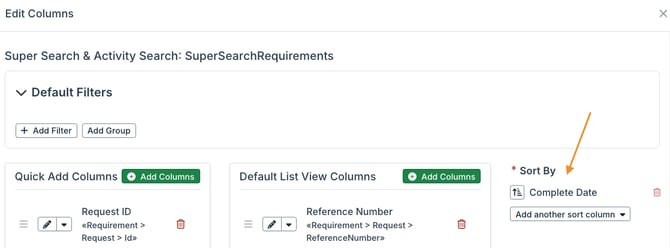
- Select the field by which the list view should be sorted.
- For a super search list view, default filters can be configured. Refer to Super Search for instructions on configuring filters and groups of filters.
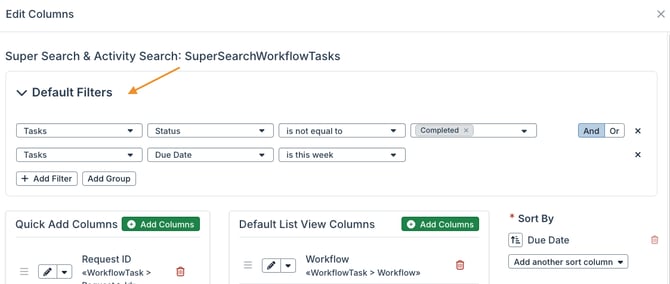
- Click Update.