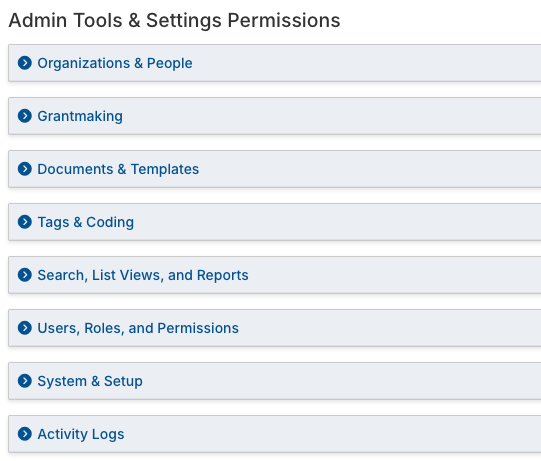
Users are staff members at your foundation or other internal users of your GivingData site. Each user must be assigned at least one role. Within each role, specific permissions are set. These permissions determine what a user with that role can see and do in the site.
Add and Manage Users
Follow the steps below to add a new user to your GivingData site.
- Click the gear icon in the quick navigation menu.
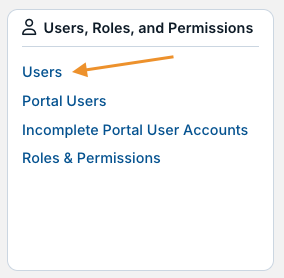
- Click Users.
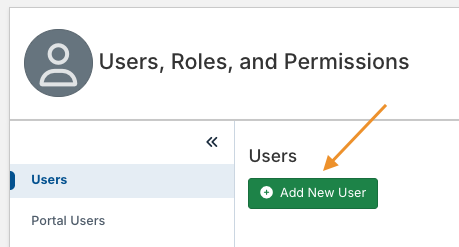
- Click Add New User.
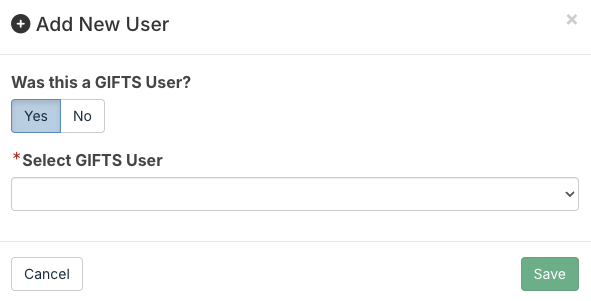
- If your organization migrated from a previous grants management system (GMS), you will first be asked if the new user had an account in the former GMS.
- If Yes, select the user from the list of accounts migrated from the former system. This will link the activity logged to that user in the former system with their new account.
- If No, continue to the next step.
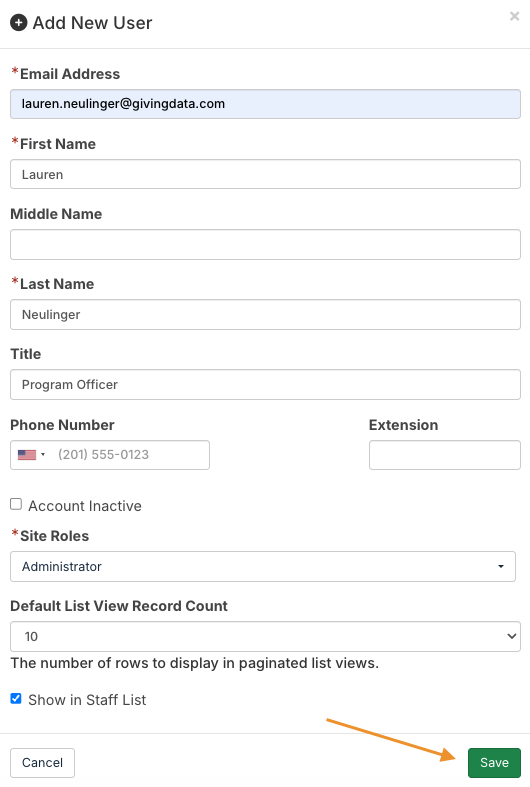
- Complete the applicable fields, and then click Save.
- Email Address – The user’s email address also serves as their username when logging in.
- Account Inactive – If checked, this deactivates the user’s account, discontinuing their access to the site. Their account can be reactivated if needed.
- Site Roles – Select one or more roles to assign to this user. Site roles determine the user’s permissions. Details are available in the article sections below. If more than one role is assigned to a user, the more permissive permissions override more restrictive permissions.
- For example, if a user is assigned a Program Staff role, which cannot manage payment information, but is also assigned a Finance role, which does have the ability to manage payment information, the user will have the ability to manage payment information.
- Default List View Record Count - This sets the default list view record count for the user. When viewing a list view (e.g. super search results), this determines the default number of list items displayed per page. The user can adjust this default setting on their Profile page and can adjust the number of items displayed directly on the list view as needed.
- Show in Staff List – If checked, this user will appear in the list of staff members available throughout the site. For example, this is the list you select from when assigning staff members to a request or a workflow task.
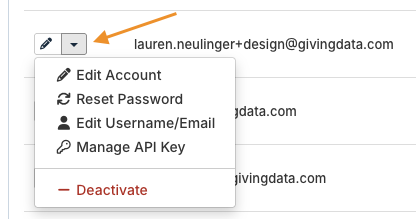
Existing users can be managed from the Users page.
- Click the dropdown icon next to a user, and then select an option:
- Edit Account – Edit the user’s account information, such as their name, title, and site roles.
- Reset Password – The system will send a password reset email to the user. They will need to take this action before they are able to log back into the site.
- Edit Username/Email - Edit the user’s email address (which also serves as their username to log in). The system will send an email to the user’s updated email address with a link to complete account activation.
- Deactivate – This makes the user’s account inactive. An inactive user can no longer access your GivingData site. Their account can be reactivated if needed.
Add and Manage Roles
By default, your site contains three roles:
- Administrator - This role has full permissions to access all data and available features in the site.
- Member - This role has more limited permissions, designed for a staff member who needs to utilize but not configure features in the site.
- System Administrator - This role is used for GivingData staff members only, allowing them to assist with site configuration and troubleshooting.
Other than the System Administrator role, you can edit or remove the default roles, and can also add as many additional roles as needed. Other commonly added roles include:
- Executive Staff
- Program Officer
- Finance Staff
- Board Member
Follow the steps below to add a new role.
- Click the gear icon in the quick navigation menu.
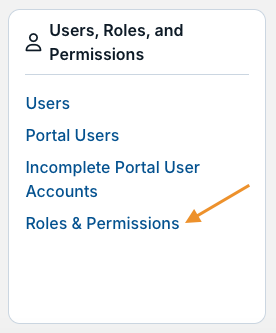
- Click Roles & Permissions.
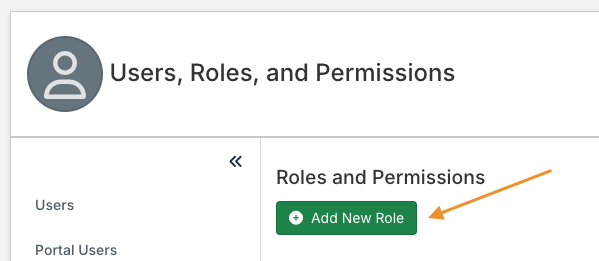
- Click Add New Role.
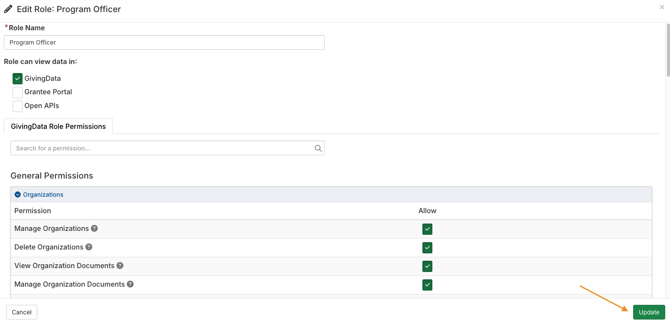
- Complete the fields at the top of the modal, check the box for each permission that users with this role should have, and then click Update.
- Role Name – Give the role a descriptive name.
- Role can view data in – These checkboxes control the role’s access at a high level. If GivingData is not selected, users with this role will only see a blank screen when attempting to log in. The Grantee Portal option does not control functionality at this time.
- Permissions – Permissions are organized into categories, and you can also search for a specific permission. Each permission has a tool tip explaining what the permission controls. Refer to the Permissions article section below for additional details.
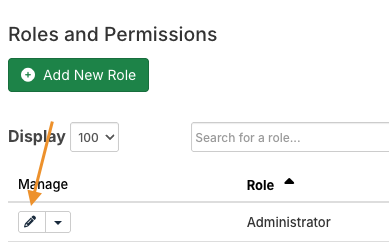
Once added, roles can be managed from this page.
- Click the pencil icon to edit the role and its included permissions.
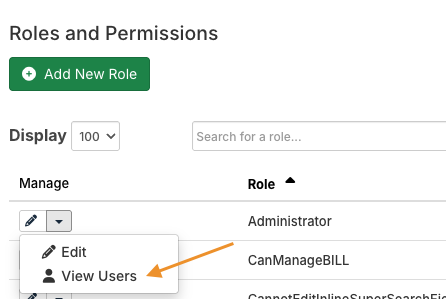
- Click the dropdown icon, and then click View Users to access a list of the users with the role assigned.
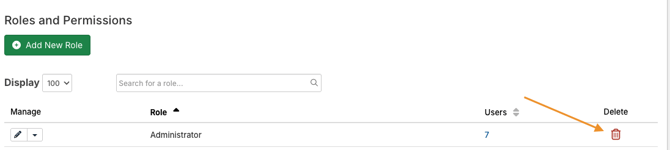
- Click the trash can icon to delete a role.
Permissions
When selecting permissions for a role, note that certain site features have multiple related permissions, while others have only one. Some of the common permissions are explained below.
- Manage - If a feature only has Manage as a permission option, enabling the Manage permission will allow users with this role to add, edit, or delete. Users without the Manage permission can only view the feature.
- View – If a feature has a separate View permission option, the Manage permission only controls the ability to add and edit. A user must also have the View permission enabled to access the feature.
- Delete – If a feature has a separate Delete permission option, a user must have the permission enabled in order to delete. The Manage permission for the feature does not include the ability to delete.
- Access – Some features have an Access permission option. This controls the ability to access the applicable feature page.
- For example, a user with the Access Budget Manager permission can view the Budget Manager.
The Admin Tools & Settings category of permissions controls access to system settings. If a role has permission to access one or more sections within Admin Tools & Settings, the gear icon will be visible to them in the quick navigation menu.
Permissions can be set for specific sections within Admin Tools & Settings, but granular permissions within the sections are limited. For example, if a role has the permission enabled for Grantmaking > Manage Request Settings, users with that role can manage all settings within that section, such as Request Statuses, Transaction Types, Declination Reasons, Default Coding, etc.
Permission should only be granted to a role if it is acceptable for those users to have access to all site configuration options in that section.
The sections within Admin Tools & Settings for which permission can be set include:
- Organizations & People - Options to manage settings for organizations, contacts, interactions, and (if applicable) the grantee portal.
- Grantmaking - Options to manage settings for requests, payments, requirements, and (if applicable) workflows, monitoring & assessments, dockets, and portfolios.
- Documents & Templates - Options to manage settings for documents, super docs, and the batch email functionality.
- Tags & Coding - Options to manage tag and code settings.
- Search, List Views, and Reports - Options to manage super search settings, default list views, and report settings and templates (if applicable).
- Users, Roles, and Permissions - Options to manage users and roles.
- System & Setup - Options to manage fiscal years, the site logo, and branding colors.
- Activity Logs - Provides access to GivingData’s activity log search, site-generated email log, and user logins log.