
The DocuSign integration is available as an add-on to all subscriptions. Contact your CSM to confirm details about which features are included or available to add on to your specific subscription.
Contact your CSM before beginning the phases outlined in this checklist. A one-time implementation fee is required.
In addition, this checklist assumes that a DocuSign production account with an API subscription has already been created. The DocuSign subscription level can be Business Pro or a Developer plan.
Configure the Integration Key in DocuSign
The Integration Key is a unique identifier required to connect the your DocuSign account with your GivingData site. Follow the steps below to create this key in the DocuSign Developer (Sandbox) environment.
- If not already created, create a DocuSign Developer (Sandbox) account.
-
Log in to the developer account as the administrator.
-
This typically must be the individual who created the account.
-
-
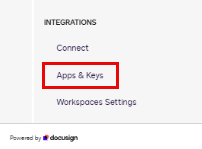
In the left-side panel under Integrations, click Apps & Keys.
-
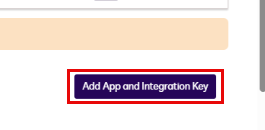
Click Add App and Integration Key.
-
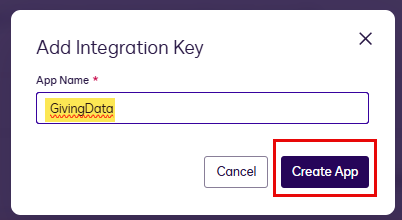
Enter "GivingData" as the App Name, and then click Create App.
-
Complete the following fields on the apps Configuration settings screen, and then scroll to the bottom and click Save.
-
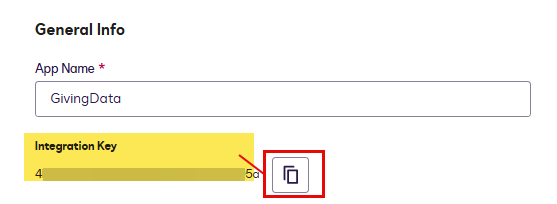
General Info - ⚠️ Copy the Integration Key, as you will be asked to provide this to your GivingData contact.
-
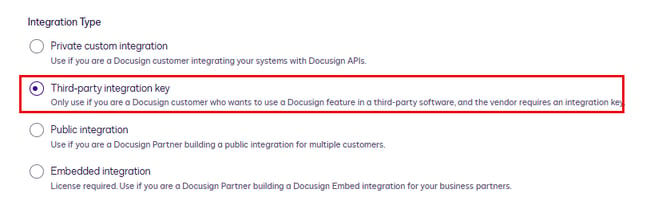
Integration Type - Select Third-party integration key.
-
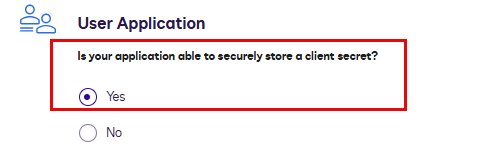
User Application: Is your application able to securely store a client secret? - Select Yes.
-
PKCE (Proof Key for Code Exchange) - Enabling this setting is optional but recommended. If enabled, it adds a layer of OAuth 2.0 security.

-
Share the Integration Key with GivingData
Share the Integration Key you copied in the previous steps with your GivingData contact.
🛑 Wait to proceed to DocuSign Integration Setup: Phase 2 until instructed to do so by your GivingData contact.