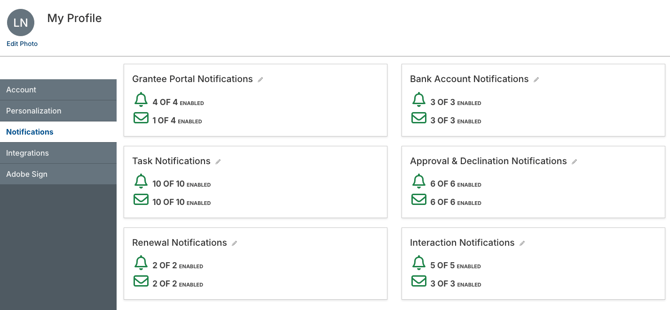
The Profile area in GivingData allows you to manage your user profile, including your account settings, notification settings, and profile picture.
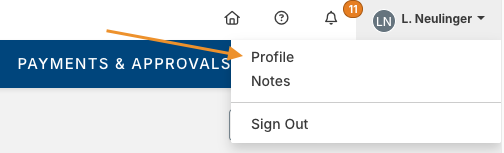
- Click your name in the upper navigation bar, and then click Profile.
The article sections below contain details on available actions in the Profile area.
Profile Picture
Personalize your GivingData account with a profile picture.
- Click your name in the quick navigation menu, and then click Profile.
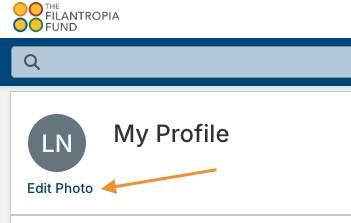
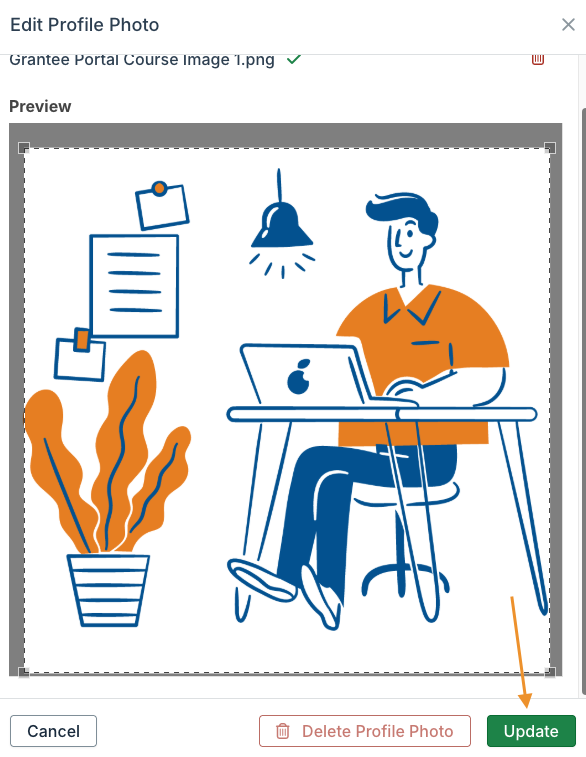
- Click Edit Photo.
- Click Select File and choose the image file from your computer.
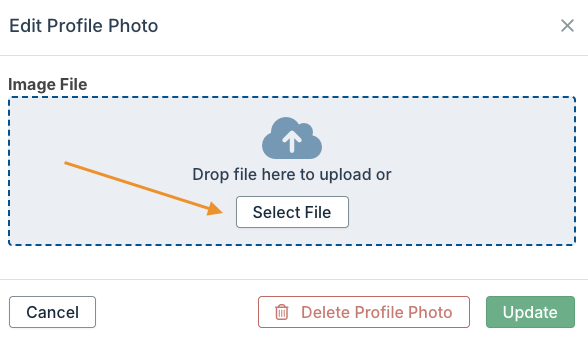
- Position the image selector as desired, and then click Update.
Account Information
Manage your user account information, including your name, title, and phone number. You can view but not edit your username/email. If your organization does not use single sign-on for your GivingData site, you can also change your password here.
As you update fields, keep in mind that the Name, Username/Email, Title, and Phone Number fields can be used as merge fields within document templates.
In the Default List View Record Count field, configure your default list view record count to either 5, 10, 25, 50, 100, or 250. When viewing a list view (e.g. super search results), this determines the default number of list items displayed per page. This can be adjusted directly on the list view as needed.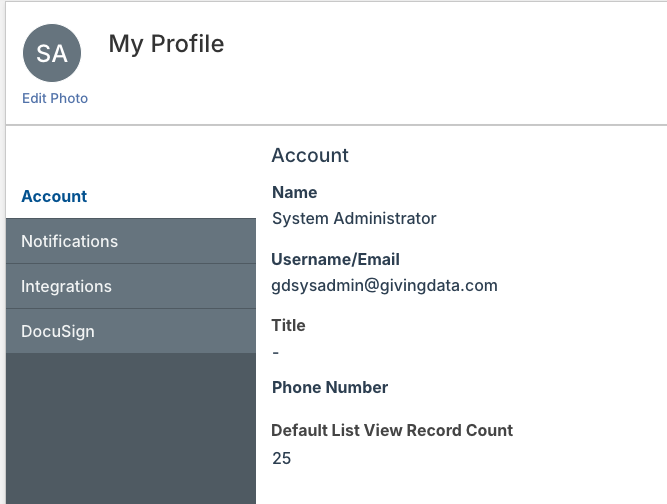
Notification Settings
Manage your notification settings, determining for which activities you will be notified, and how you will receive those notifications.